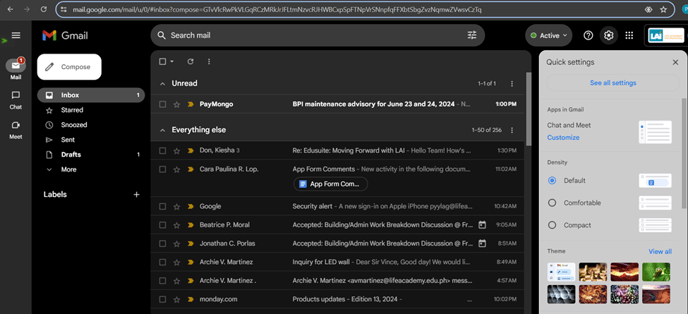
- On your Gmail account, click on the settings icon on the upper right of the page, then click on “See all settings.” This will open the Settings page.
-
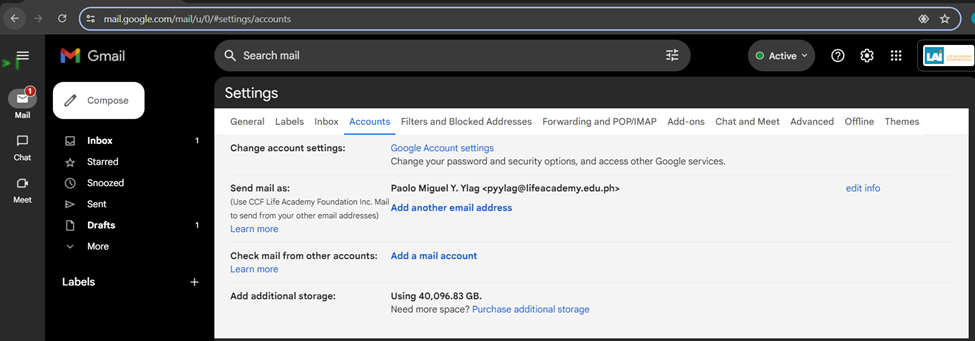
Click on the Accounts tab, then click on “Add another email address”
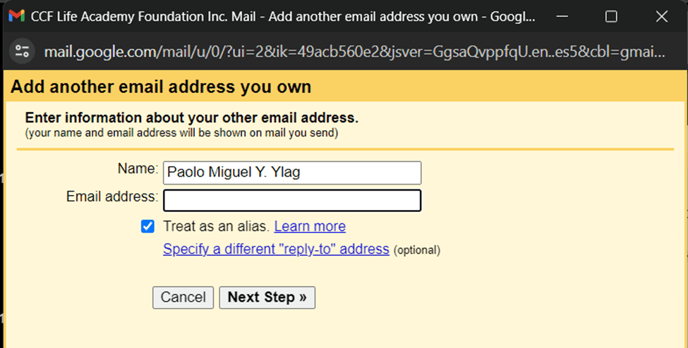
- A window will open asking you to login. Input the Name you want your recipient to see when you send them a message. Input the group email address here.
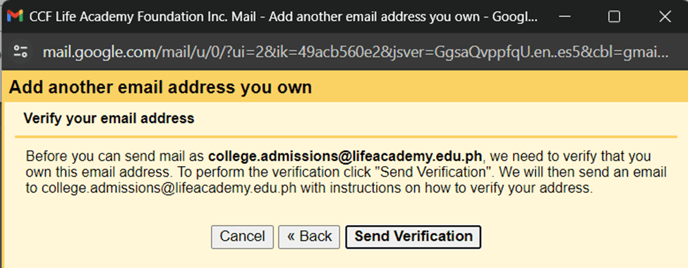
- Click Send Verification. This will send to all email addresses under the group email.
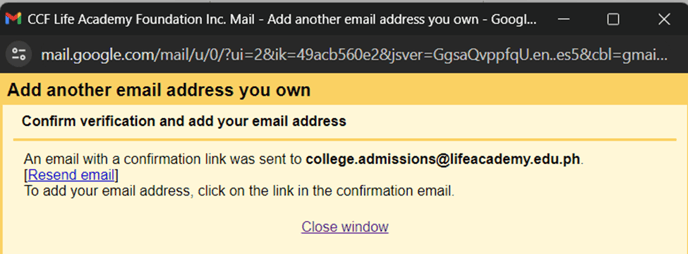
-
Locate the email in the email addresses under the group email address and click the long link to confirm this action.
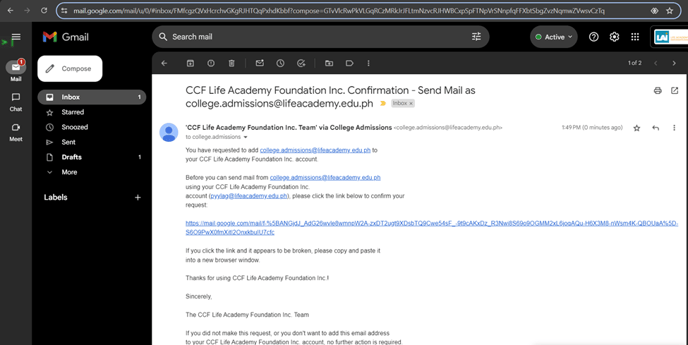
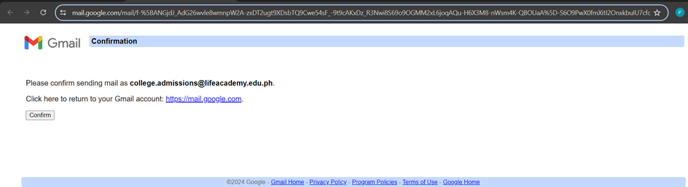
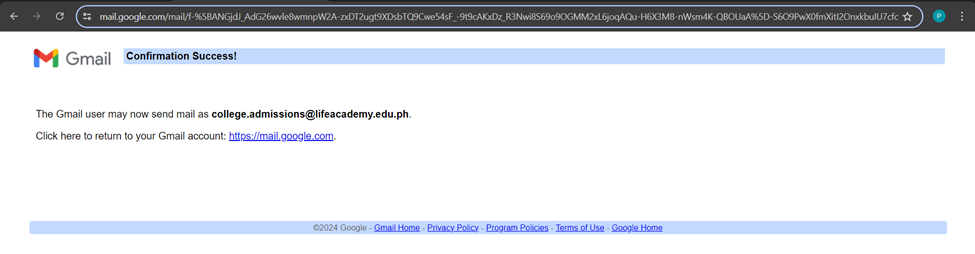
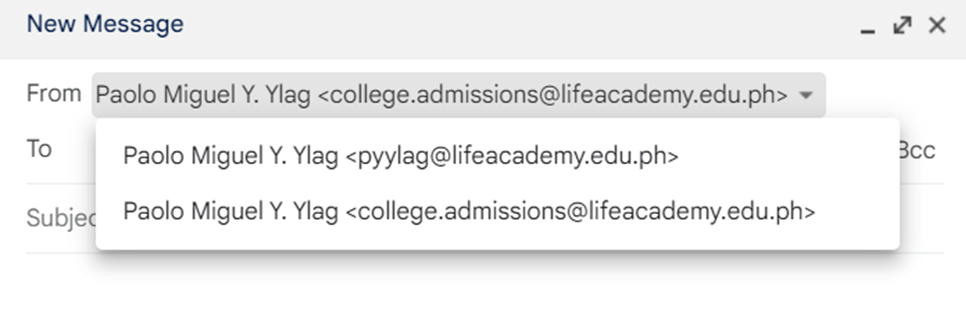
- To verify if this is successful, create a new email, and click on your email address on the From bar, the added email address should be selectable here.
English
![Top Nav Logo-PNG-3.png]](https://knowledge.laicollege.edu.ph/hs-fs/hubfs/Top%20Nav%20Logo-PNG-3.png?height=50&name=Top%20Nav%20Logo-PNG-3.png)